A Sail on a Whale
A red sailboat balances on the whale’s back as broad strokes of white crest the waves.
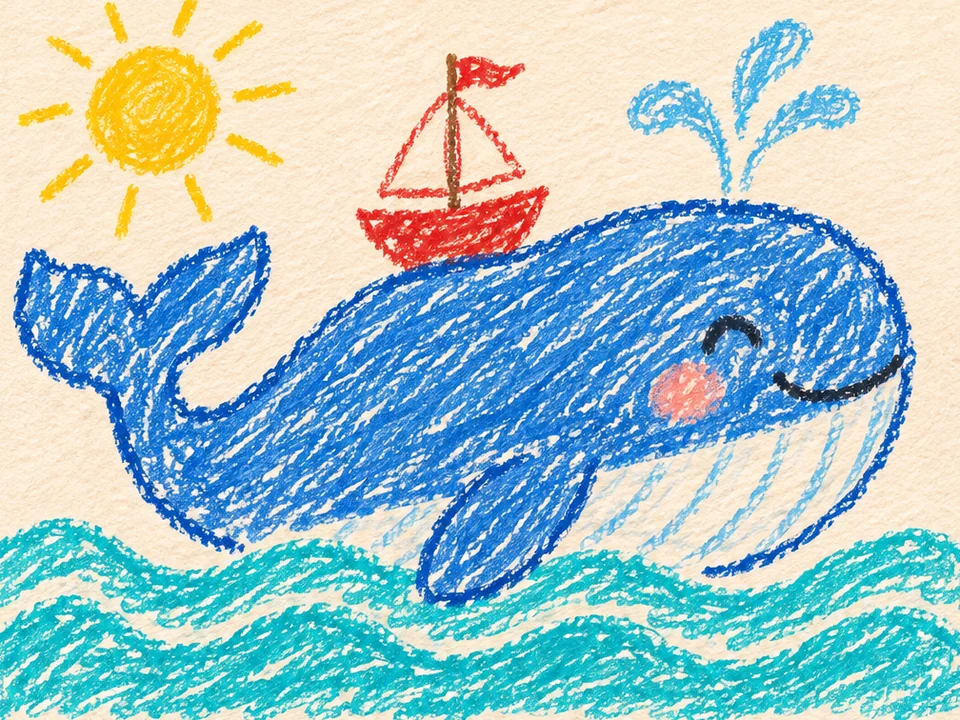
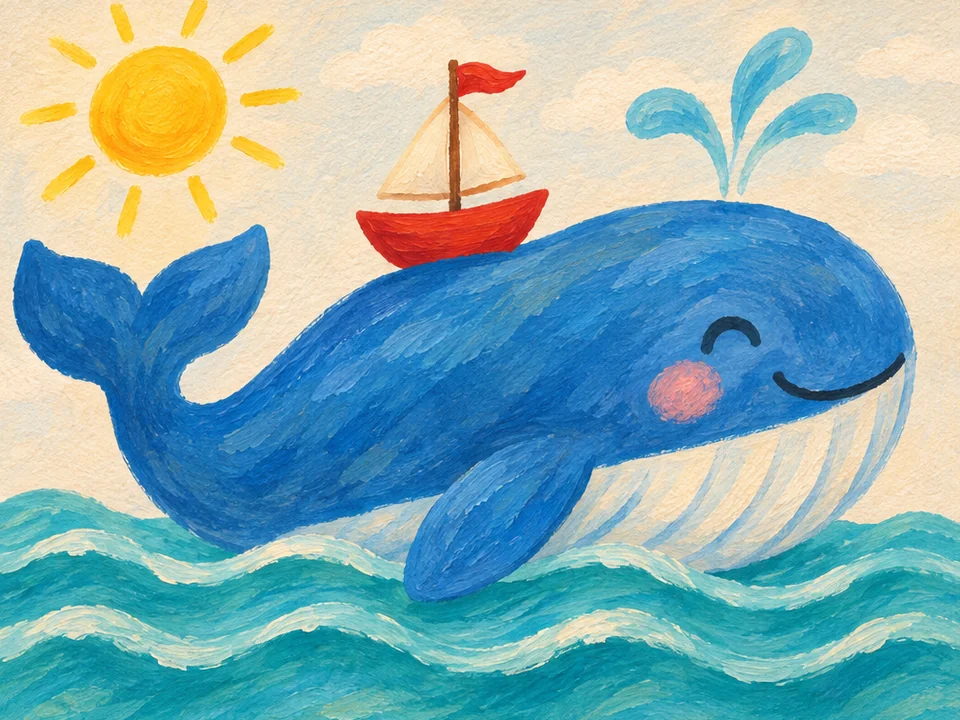
Turn a child’s drawing into a picture-book title page, keeping its familiar colors and strokes.
Three original scenes, each drawn in crayon and painted in gouache.
A red sailboat balances on the whale’s back as broad strokes of white crest the waves.
A loaf glows golden in the window beneath the striped awning.
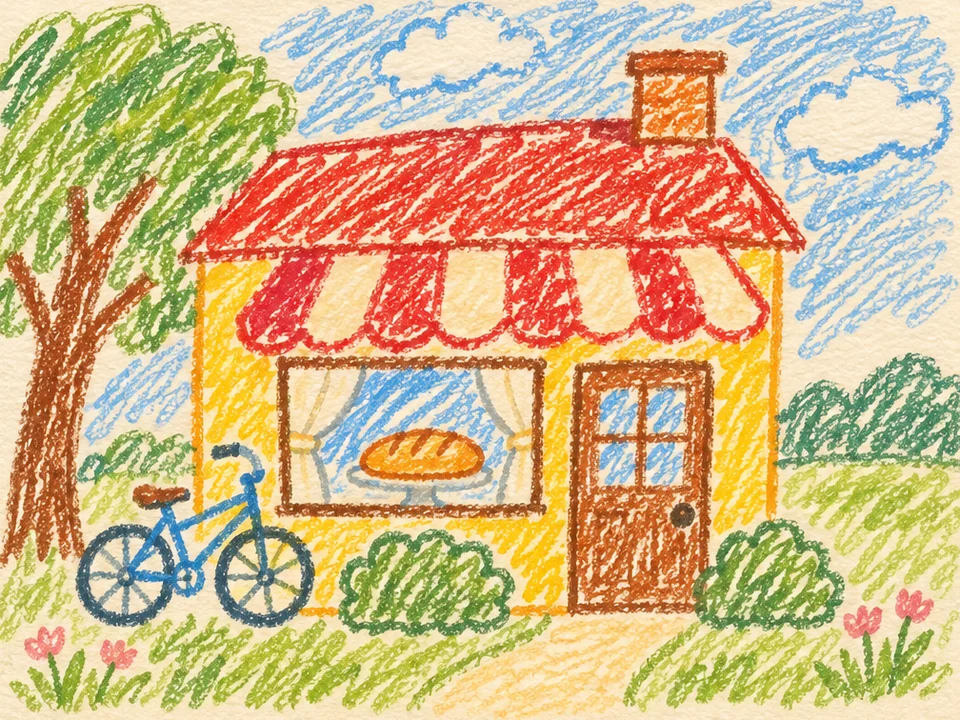
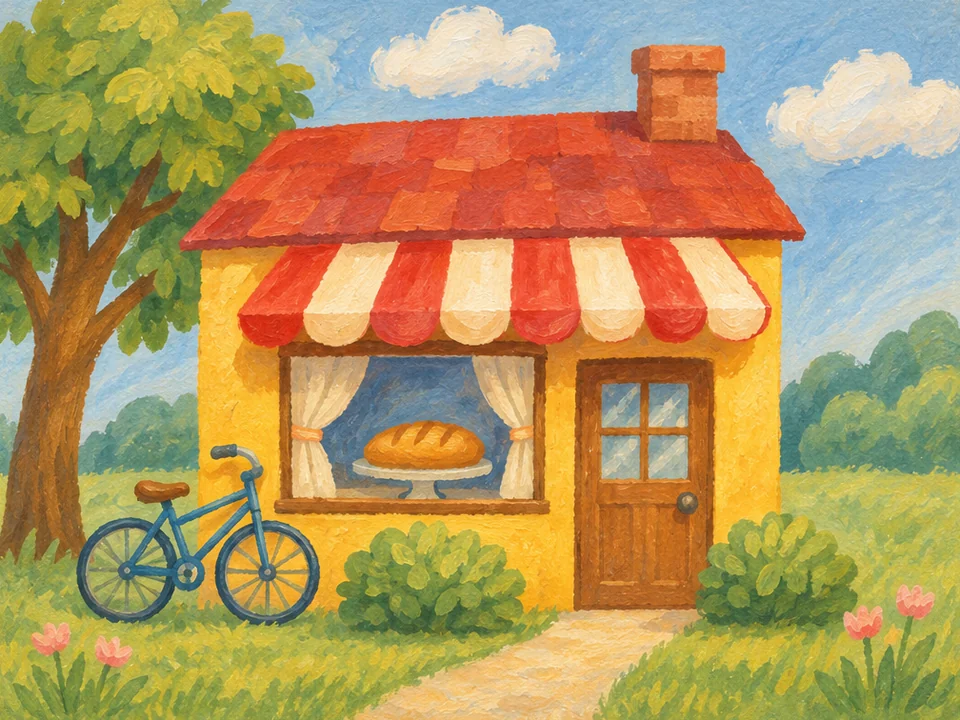
Three fireflies glow against the deep blue sky as a little fox looks up.
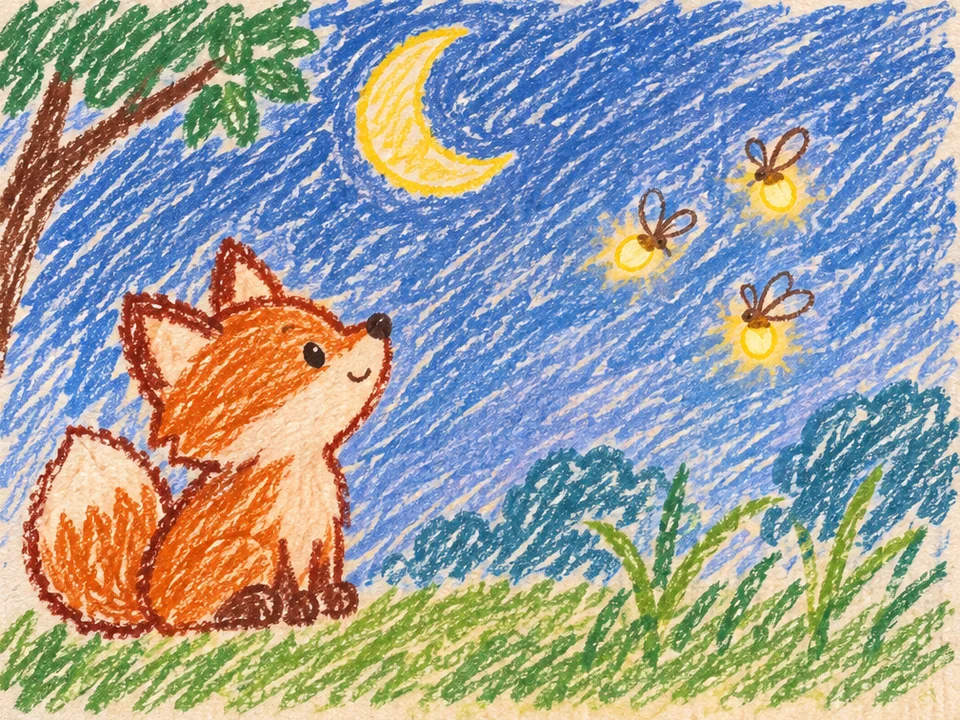
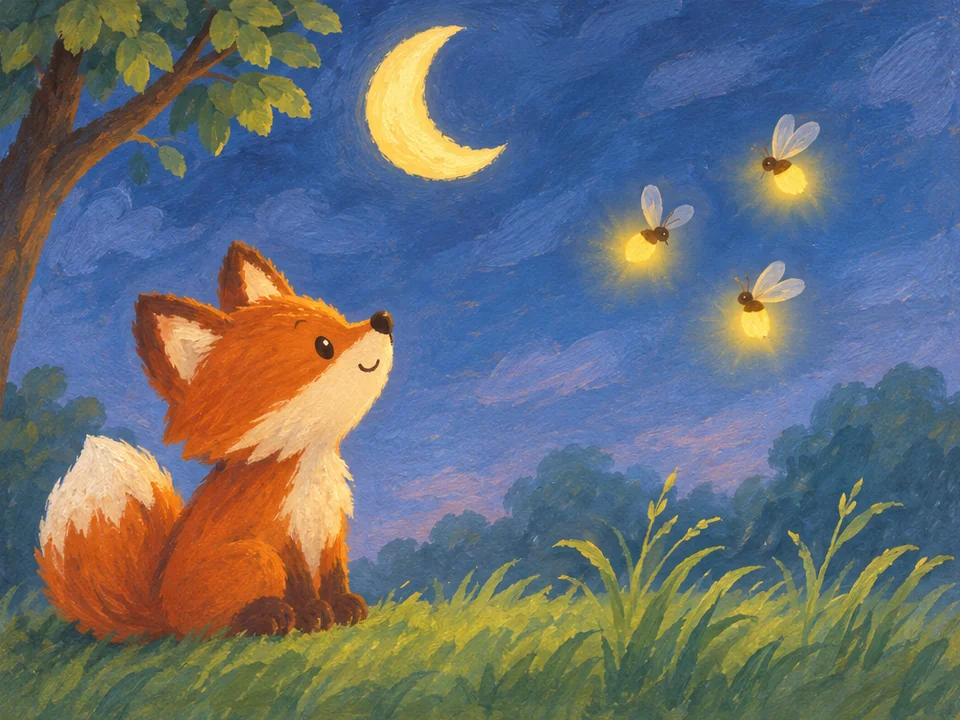
Gouache Storybook works with children’s doodles, marker drawings, and colored-pencil art. It softens distractions from the photo and places the drawing on a light paper background.
Photograph the whole drawing in natural light, with as little glare or shadow as possible.
Sign in, upload the drawing, and generate a page. The tool writes a short English title based on the picture.
Download the still image or find it again in My Creations.
Upload one JPG, PNG, or WebP image up to 10 MB. Paper doodles, crayon drawings, colored-pencil art, and clear photos can all be starting points.
Lay the artwork flat and photograph it straight on in even daylight. Include the whole drawing and avoid glare, hand shadows, and clutter. Blur, tilted angles, and cropped subjects make it harder to preserve the characters, strokes, and composition.
The model uses the characters, actions, or objects in the image to write a short English title and compose a gouache storybook page. Titles are generated with a shared template; the workbench currently has no separate title editor.
AI redraws the image, so colors, lines, character details, and lettering may change. Check the still result before generating motion. You can view the source image and the finished painting separately.
Each still-image generation costs 1 credit. Generating a video of about 3 seconds from an image is charged separately. The confirmation dialog shows the current credit cost and your balance before you submit. Use the price shown there.
Converting an existing video to a Live Photo, downloading it again, and retrying packaging are free. Confirmed image- or video-generation failures are refunded automatically. Uncertain outcomes remain under review with retries paused; wait for an update before submitting again.
Sign in with the account used to create the artwork, open My Creations, and select Gouache Storybook. Open a saved work to continue converting or exporting it. Use the same account when switching browsers or devices.
Works with an existing video can be exported without generating or paying for the video again. If a download or playback link expires, reopen the work to refresh it. You do not need to generate another image to download your result.
Click Export motion photo beside the Live icon, choose a format in the dialog, then download. Apple Live Photo · ZIP contains a matching JPG and MOV for a tool that supports paired import. Android Motion Photo · JPG stores the still cover and short video in one file.
With only an iPhone, download the MP4 from How to import into Photos under the Apple option, then use an app that saves videos as Live Photos. A browser preview, ordinary JPG, or MP4 is not itself a Live Photo saved in your photo library. Follow the device instructions below.
The Apple ZIP contains paired resources. Try importing them together in Photos on Mac, then confirm recognition with the LIVE badge and actual playback.
A Safari ZIP download goes to Files. Extracting it and saving the JPG and MOV separately does not combine them into a Live Photo. This website cannot directly write paired resources into Photos on iPhone.
Choose Android Motion Photo · JPG. The downloaded JPG contains both the still image and video; there are no separate files to combine. Recognition depends on the gallery app and device version.
Check the format first. Apple ZIP resources need paired import to become a Live Photo in Photos. Android JPG needs a Motion Photo-compatible gallery. MP4 is a regular video. Browsers, file managers, and unsupported viewers may only show the cover.
Download the originals again from the work. Avoid screenshots, compression, sending only the cover, or renaming files during transfer. Import the same Apple JPG and MOV together; on Android, retain the complete original MP.jpg.
If the task is under review, wait for a status update. If video generation finished but packaging failed, retry the export for free. Only confirm another credit charge when you actually want to generate motion again.