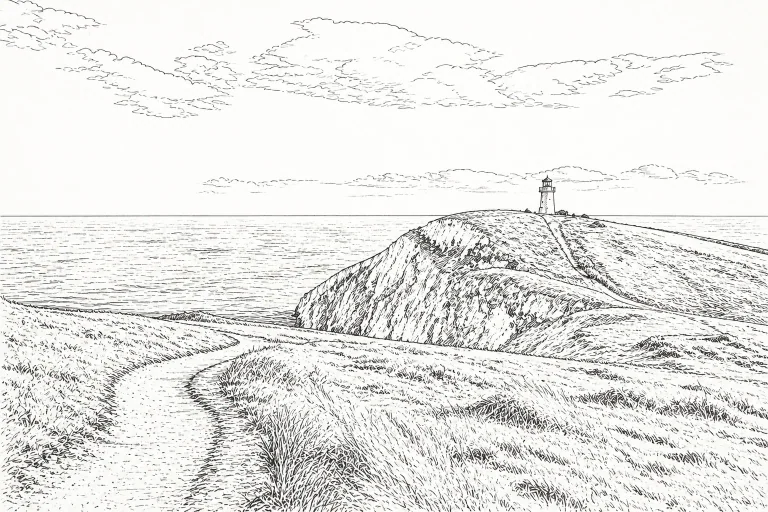
Photo to line art
Choose a photo that makes a clearer coloring page
Learn which photos work well as line art, how to choose a line style, and what to check before downloading the result.
Give the subject a clear silhouette
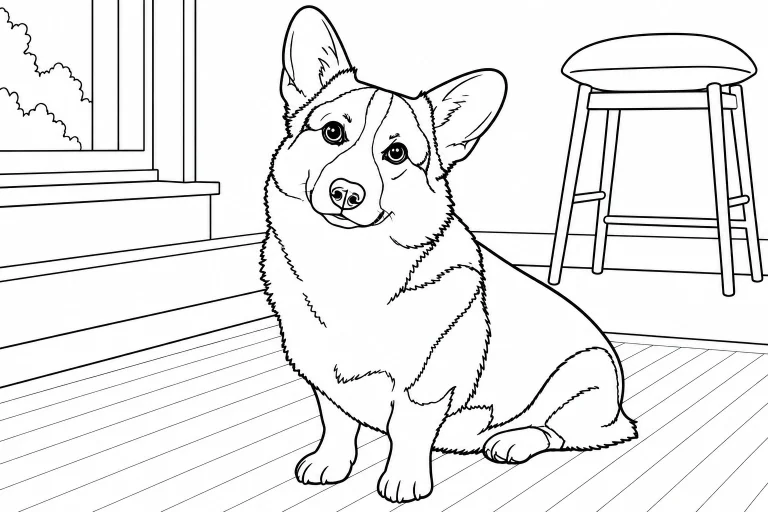
A pet against a plain wall is usually easier to read as a coloring page than the same pet surrounded by furniture, patterned fabric, and shadows. Look for one obvious subject, good focus, and enough contrast between the subject and its surroundings.
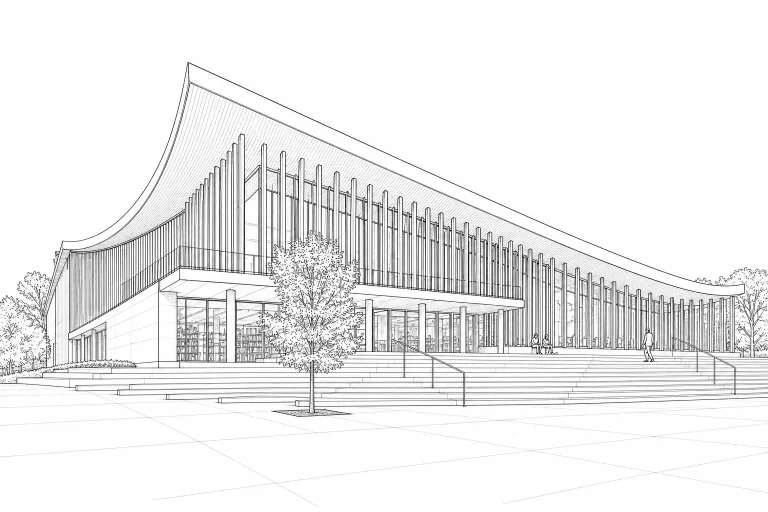
For a portrait, choose a photo where the face is large enough to see clearly. Avoid a strong shadow across the eyes or a face hidden behind hair. For a building, straight-on or slightly angled photos make windows, doors, and rooflines easier to recognize. These are useful starting points, not a guarantee of a particular result.
Crop first, then choose how much detail to keep
Crop away objects that do not belong in the finished activity. Keep a little breathing room around ears, hands, branches, or a roof so those shapes are not cut off. Brightening a dark photograph can help you inspect it, but increasing sharpness aggressively can add edges that become unwanted texture.
In ColorPicnic’s photo workspace, compare the available line styles. Contour-focused linework is a starting point for a simpler result, while textured or fine linework can retain more small detail. A detailed style is not automatically a better coloring page: tiny marks may leave very little room for color.
- For large coloring areas, start with fewer background objects and a simpler line style.
- For architecture, keep the structures you want to recognize inside the crop.
- For fur or foliage, inspect the result at print size before choosing more detail.
Check the result as an activity, not just a preview
Zoom in on faces, hands, paws, and repeated structures such as windows. Generated line art can reinterpret details or omit them. Check both resemblance and usability: are the important shapes recognizable, and are the spaces large enough for the intended pencils or markers?
Some outlines may remain open. That can still work on paper, but a digital fill tool may spread through a gap into a neighboring region. If that happens, use a brush for that area or choose another result with clearer boundaries. Do not assume that every line-art image is a fully closed coloring template.
Keep the original and plan the print
Use only photos you own or have permission to process. For family photographs, choose what you are comfortable uploading and review the site’s privacy information before proceeding. ColorPicnic’s AI photo tools use an account and creation credits; browsing free printable pages is a separate option.
Download the result through the workspace once it is ready. Use PNG for further editing, or export a PDF in your selected paper format. Match the file to your paper and check the print preview, then make one test print before printing several copies.
ColorPicnic · Editorial standards