Online coloring guide
How to Color Online: Fall & Halloween Pages for Kids
Color fall and Halloween pages for kids online: learn fill, brush, undo and PNG saving, choose a simple picture, and avoid common coloring mistakes.
Pick a page and give it a go
Got a few minutes for a fall or Halloween activity? Pick a picture, open Color online, and let the kids choose the colors. You don’t need to write a prompt or make a new image first.
The basic tools are free to use without an account: the standard palette, Fill, the round Brush and Eraser. Anything marked Premium is extra. AI image generation is a separate tool that uses an account and creation credits.
Your coloring stays in this browser tab until you download it. Save before you refresh, switch languages or move to another picture. These screenshots show the English controls.
Open a picture and fill the big shapes
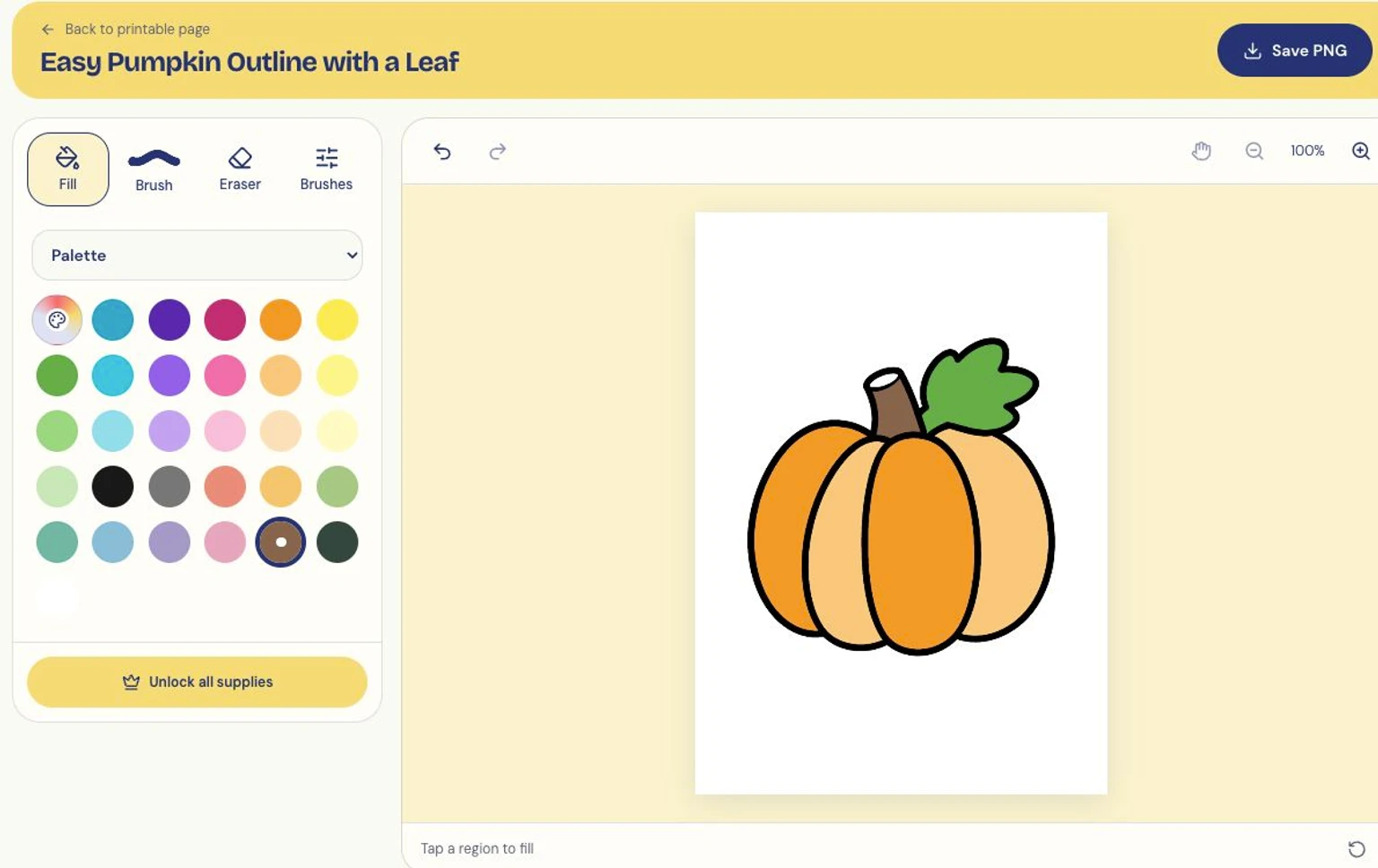
Open a coloring page and choose Color online. Wait for the picture to load. A pumpkin with big, clear sections is a good first pick—there’s less fiddly clicking.
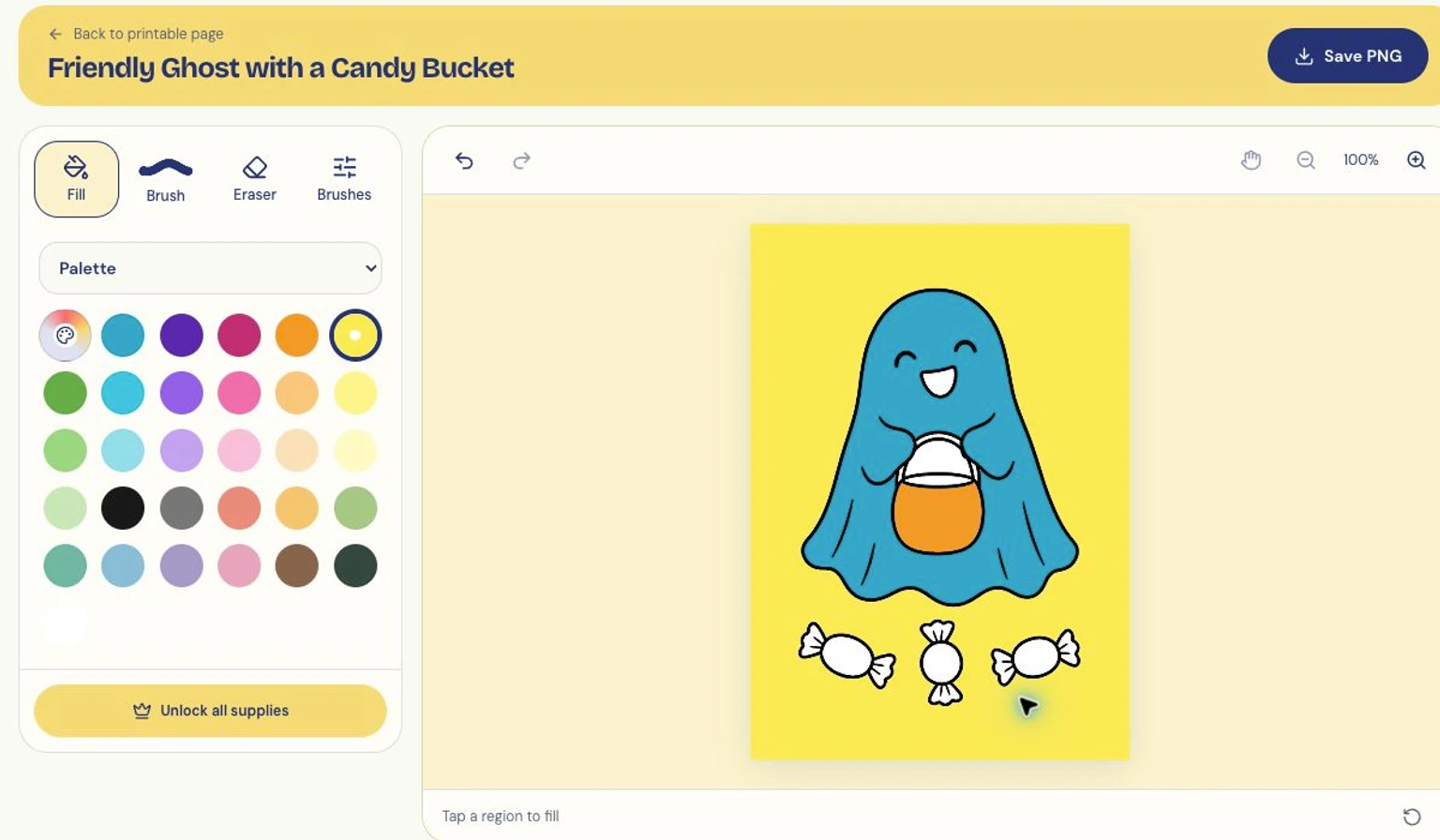
Choose a color from Palette, then select Fill and click inside a shape. Stay away from the black outline and give each fill a moment to finish. Want your own shade? Try the rainbow Custom color button.
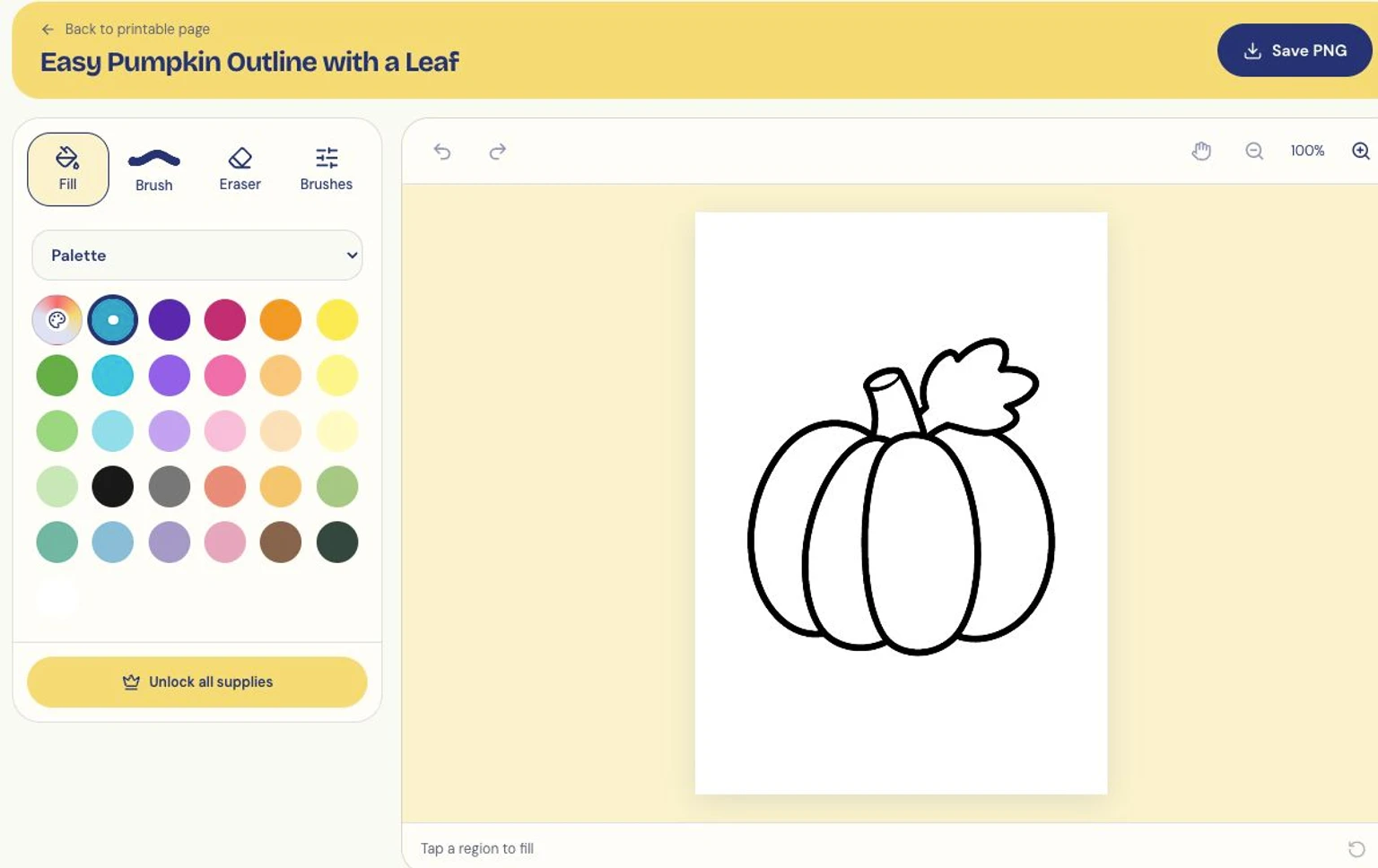
Start with a clear outline and a few big shapes.
Add a few details with the brush
Choose Brush, pick a smaller size, and start your stroke inside the shape. Recognize boundaries helps keep the stroke in that starting area, but it can’t fix every broken outline.
Zoom in when a space feels fiddly. Undo takes back a mistake; Redo brings it back. Eraser removes your added color while leaving the line drawing in place.
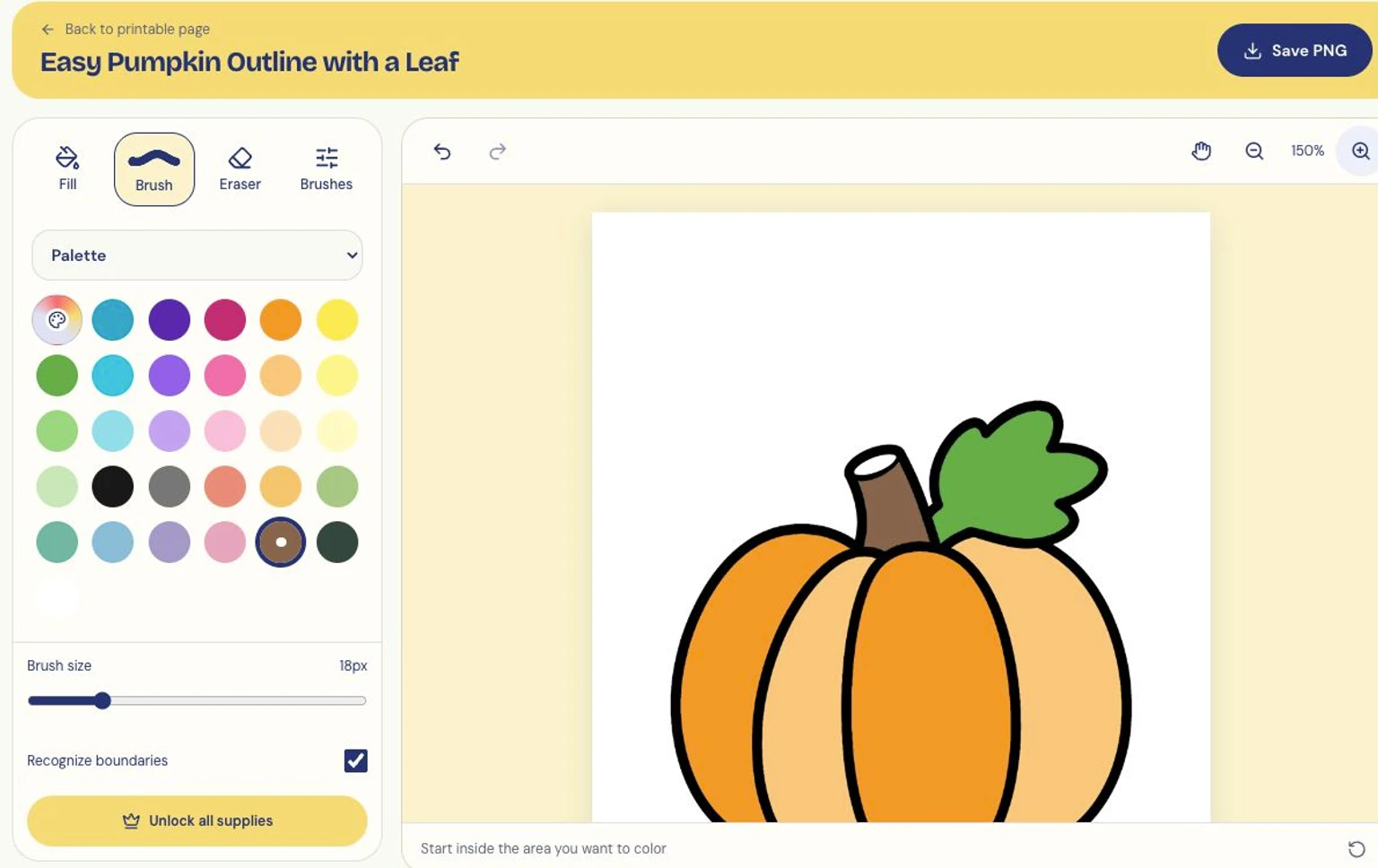
Zoom in, choose a small brush, and start inside the shape.
ColorPicnic ·